
Table of Content
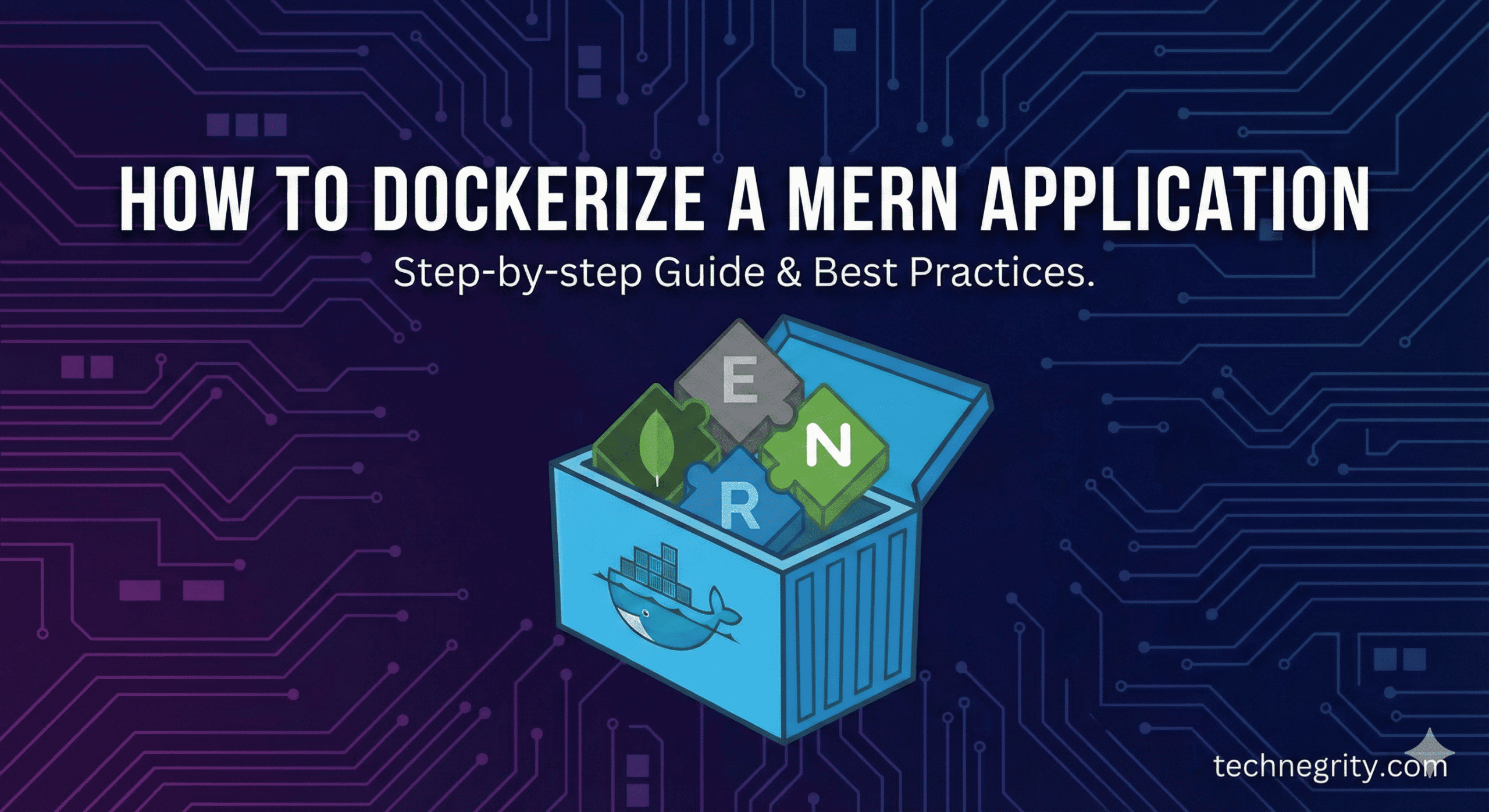
Dockerizing a MERN (MongoDB, Express, React, Node.js) application streamlines development, ensures consistency across environments, and simplifies deployment. This comprehensive guide walks you through containerizing each component of your MERN stack application using Docker and Docker Compose.
What is Docker and Why Use It for MERN Applications?
Docker is a containerization platform that packages applications and their dependencies into isolated containers. For MERN stack developers, Docker offers several advantages:
- Environment consistency: Your application runs identically on development, staging, and production
-
Simplified onboarding: New developers can start working with a single
docker-compose upcommand - Microservices architecture: Each MERN component runs in its own container
- Easy scaling: Deploy and scale your application effortlessly across different environments
Prerequisites
Before you begin dockerizing your MERN application, ensure you have:
- Docker Desktop installed on your machine
- Docker Compose (included with Docker Desktop)
- A basic MERN application with separate frontend and backend directories
- Basic understanding of Docker concepts
Project Structure
A typical dockerized MERN application follows this structure:
mern-app/
├── client/                 # React frontend
│   ├── src/
│   ├── public/
│   ├── package.json
│   └── Dockerfile
├── server/                 # Node.js/Express backend
│   ├── src/
│   ├── package.json
│   └── Dockerfile
├── docker-compose.yml
└── .dockerignore
Step 1: Create Dockerfile for Node.js Backend
Start by creating a Dockerfile in your server directory. This file defines how Docker builds your backend container.
# Use official Node.js LTS image
FROM node:22-alpine

# Set working directory
WORKDIR /app

# Copy package files
COPY package*.json ./

# Install dependencies
RUN npm install

# Copy application code
COPY . .

# Expose the port your app runs on
EXPOSE 5000

# Start the application
CMD ["npm", "start"]
Backend Dockerfile Optimization Tips
For production environments, consider these optimizations:
- Use multi-stage builds to reduce image size
- Install only production dependencies with
npm ci --only=production - Add a non-root user for security
- Use
.dockerignoreto exclude unnecessary files
Step 2: Create Dockerfile for React Frontend
In your client directory, create another Dockerfile for the React application:
# Build stage
FROM node:18-alpine as build

WORKDIR /app

COPY package*.json ./
RUN npm install

COPY . .
RUN npm run build

# Production stage
FROM nginx:alpine

# Copy build files to nginx
COPY --from=build /app/build /usr/share/nginx/html

# Copy nginx configuration (optional)
COPY nginx.conf /etc/nginx/conf.d/default.conf

EXPOSE 80

CMD ["nginx", "-g", "daemon off;"]
This multi-stage build creates an optimized production image by building the React app and serving it with Nginx.
Step 3: Configure Docker Compose
Docker Compose orchestrates multiple containers. Create a docker-compose.yml file in your project root:
version: '3.8'

services:
  # MongoDB Database
  mongodb:
    image: mongo:latest
    container_name: mern_mongodb
    restart: unless-stopped
    environment:
      MONGO_INITDB_ROOT_USERNAME: admin
      MONGO_INITDB_ROOT_PASSWORD: password123
    ports:
      - "27017:27017"
    volumes:
      - mongo_data:/data/db
    networks:
      - mern_network

  # Node.js Backend
  backend:
    build:
      context: ./server
      dockerfile: Dockerfile
    container_name: mern_backend
    restart: unless-stopped
    environment:
      NODE_ENV: development
      MONGO_URI: mongodb://admin:password123@mongodb:27017/merndb?authSource=admin
      PORT: 5000
    ports:
      - "5000:5000"
    depends_on:
      - mongodb
    volumes:
      - ./server:/app
      - /app/node_modules
    networks:
      - mern_network

  # React Frontend
  frontend:
    build:
      context: ./client
      dockerfile: Dockerfile
    container_name: mern_frontend
    restart: unless-stopped
    ports:
      - "3000:80"
    depends_on:
      - backend
    networks:
      - mern_network

volumes:
  mongo_data:

networks:
  mern_network:
    driver: bridge
Step 4: Create .dockerignore Files
Add .dockerignore files in both client and server directories to exclude unnecessary files from Docker builds:
node_modules
npm-debug.log
.git
.gitignore
README.md
.env
.DS_Store
This reduces build time and image size significantly.
Step 5: Configure Environment Variables
Never hardcode sensitive information. Create a .env file for your backend:
NODE_ENV=development
PORT=5000
MONGO_URI=mongodb://admin:password123@mongodb:27017/merndb?authSource=admin
JWT_SECRET=your_jwt_secret_key
Update your docker-compose.yml to use environment files:
backend:
  env_file:
    - ./server/.env
Step 6: Build and Run Your Dockerized MERN Application
Now you’re ready to launch your containerized application:
# Build and start all containers
docker-compose up --build

# Run in detached mode
docker-compose up -d

# Stop all containers
docker-compose down

# View logs
docker-compose logs -f
Your application is now accessible at:
- Frontend: http://localhost:3000
- Backend API: http://localhost:5000
- MongoDB: localhost:27017
Development vs Production Configurations
Development Setup
For development, use volume mounts to enable hot reloading:
backend:
  volumes:
    - ./server:/app
    - /app/node_modules
  command: npm run dev
Production Setup
For production, optimize your images and use production-ready configurations:
backend:
  build:
    context: ./server
    dockerfile: Dockerfile.prod
  environment:
    NODE_ENV: production
Common Docker Commands for MERN Applications
Here are essential Docker commands you’ll use frequently:
# Rebuild specific service
docker-compose build backend

# Execute commands in running container
docker-compose exec backend npm install package-name

# View container logs
docker-compose logs backend

# Remove all containers and volumes
docker-compose down -v

# Prune unused images
docker system prune -a
Troubleshooting Docker MERN Applications
Connection Issues Between Services
If your backend can’t connect to MongoDB, verify:
- Services are on the same Docker network
- You’re using the service name (not localhost) in connection strings
- The depends_on configuration is correct
Port Conflicts
If ports are already in use:
- Change the host port in docker-compose.yml (e.g., “3001:3000”)
- Stop conflicting services on your host machine
File Permission Issues
On Linux systems, you might encounter permission errors. Add this to your Dockerfile:
RUN chown -R node:node /app
USER node
Performance Optimization Tips
Enhance your dockerized MERN application’s performance:
-
Use Alpine-based images: They’re smaller and faster (e.g.,
node:22-alpine) - Implement layer caching: Copy package.json before source code
- Use .dockerignore: Reduce build context size
-
Enable BuildKit: Set
DOCKER_BUILDKIT=1for faster builds - Use multi-stage builds: Separate build and runtime dependencies
Security Best Practices
Secure your dockerized MERN application:
- Never commit
.envfiles to version control - Use secrets management for production
- Run containers as non-root users
- Regularly update base images
- Scan images for vulnerabilities with
docker scan - Use specific version tags instead of
latest
Deploying Dockerized MERN Applications
Once dockerized, your MERN application can be deployed to:
- AWS ECS/EKS: Amazon’s container orchestration services
- Google Cloud Run: Serverless container platform
- DigitalOcean App Platform: Simple container deployment
- Heroku: Using container registry
- Self-hosted: On any server with Docker installed
For production deployment, consider using Kubernetes for advanced orchestration or Docker Swarm for simpler setups.
Monitoring and Logging
Implement proper monitoring for your containerized application:
backend:
  logging:
    driver: "json-file"
    options:
      max-size: "10m"
      max-file: "3"
Use tools like Portainer, Docker Stats, or cloud-native monitoring solutions to track container health and performance.
Conclusion
Dockerizing your MERN application provides a robust foundation for development and deployment. By containerizing MongoDB, Express, React, and Node.js, you achieve environment consistency, simplified deployment, and better scalability. Start with the basic setup outlined in this guide, then gradually implement production optimizations and security best practices as your application grows.
The initial setup might seem complex, but the long-term benefits of containerization make it worthwhile for any serious MERN stack project. Your team will appreciate the simplified onboarding process, and your deployment pipeline will become more reliable and repeatable.
Post your doubts, queries or any problem related to docker in the comment section and I’ll respond to them with possible solution.
